05.12.26
Why Your Phone Says ‘No SIM Card’ and How to Fix It
by Kathy Hinson
A simple reset of your SIM card may fix problems with your phone connecting or saying "no SIM found."
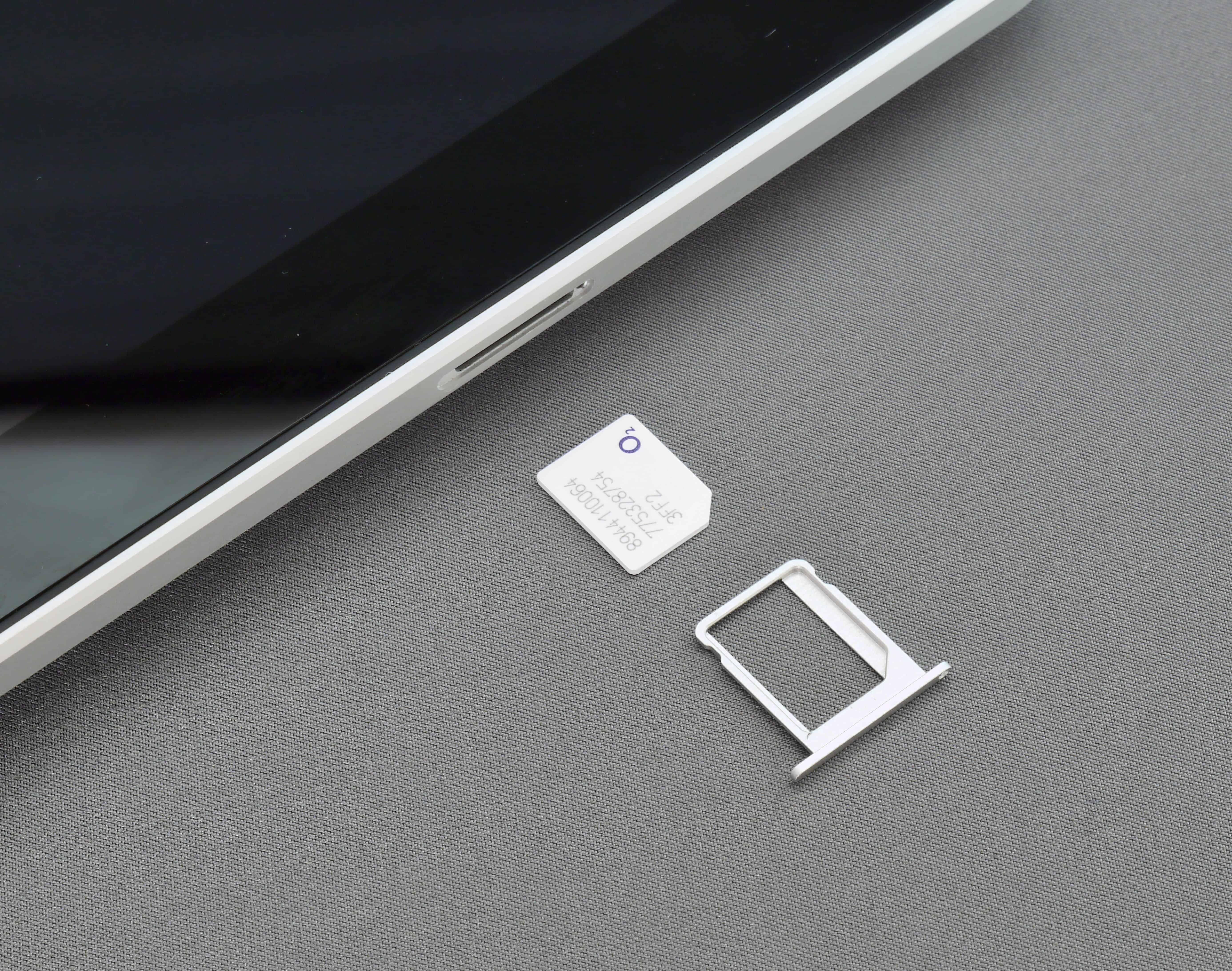
If you run into trouble with your phone connecting or it starts showing messages like “no SIM card,” you can try to reset your SIM card.
SIM stands for Subscriber Identity Module, and it’s necessary for connecting your phone to a cellular network so you can use it beyond Wi-Fi. There are a few kinds of SIM cards, both physical and digital (which is called an eSIM). We'll focus on how to reset a physical SIM, because an eSIM cannot be reset, but as you’ll see there are other steps you can take to troubleshoot that also might help with an eSIM.
There’s not much prep here, other than turning off the phone. These days the phone’s internal memory or cloud storage hold your contacts, messages, photos and apps. So don't worry that removing the SIM card will cause you to lose those.
Here’s some things to try first, before resetting your SIM card:
Phone makers regularly update the operating systems for their devices. If you haven’t downloaded and installed the latest one, try that first. Updating your device’s software this way could clear up issues you’re having.
For Androids: When you get a notification there’s a software update, follow the included instructions. Or, at any time, go to Settings -> System -> Software Update and follow the instructions.
For iPhones: Go to Settings -> General and then tap on Software Update if one is available. While there, you can also toggle on Automatic Updates so your phone will automatically update while plugged in and not in use (usually overnight while charging).
After you’ve checked that you’re on the latest software, you could try simply turning on Airplane Mode and then turning it back off after a minute. That causes your phone to refresh its connection to the network, which might solve your issue.
Similarly, switching your phone off briefly may solve a problem. On powering back up, the phone refreshes its connection and frees up memory.
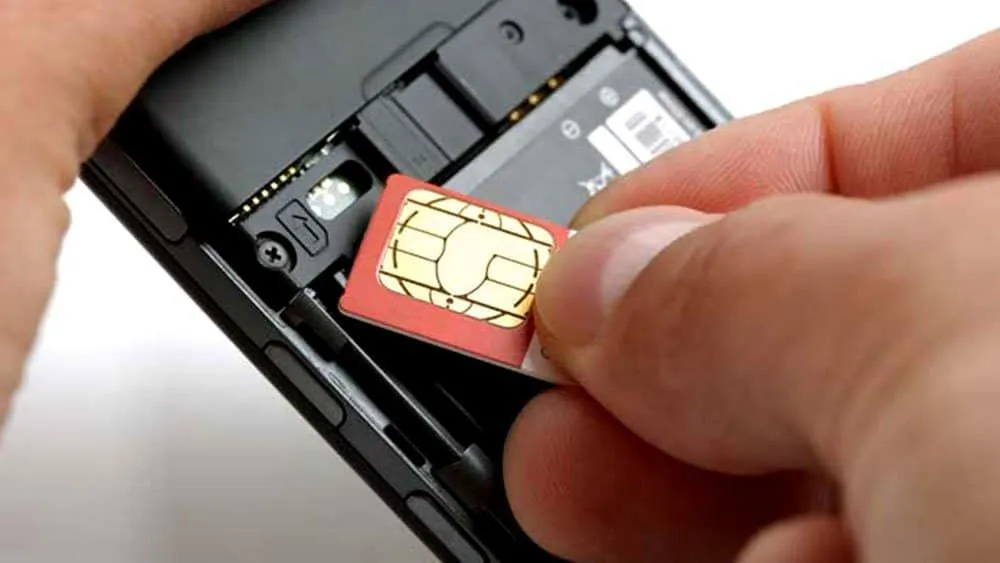
If you’re on the latest software version and have tried Airplane Mode and turning the phone off/on, the next step is to take out the SIM and dust off the physical card — if your phone has that type of SIM card.
The iPhone 14 and later models use an eSIM only, but most models before the 14 have a physical nano SIM card.
Most Androids have a nano SIM.
Further steps you can try:
If the physical SIM card is broken, corroded, or no longer fits, get a replacement card from your carrier.
You might also consider replacing the SIM card if it persistently leads to "SIM not found" messages, often drops calls, or has trouble maintaining internet connection.
Of course, you also will replace your SIM card if you switch carriers.
SIM card costs range from free when changing carriers to around $5-$10 when replacing one with the same carrier.